
Overview
For some time now, I’ve been trying to solve a longstanding annoyance. When processing images in Photoshop using Pep Ventosa’s ‘In the Round’ technique, I’ve always found it challenging to set individual layer opacities so that each makes a similar contribution to the final image.
The problem
If you’ve experimented with this technique, you’ll probably be familiar with the challenge. We combine multiple images as Photoshop layers and, at least initially, want each image to contribute more or less equally to the final result. That’s not to say we necessarily want every layer to have the same visual impact, but we do need a good baseline or starting point from which to make our own creative decisions.
It might seem logical to give every layer the same opacity. Unfortunately, experience has shown that this doesn’t work as well as we might expect.
Instead, it introduces an increasing bias towards the upper layers in the stack, while the contribution of those further down gradually diminishes. The result can be an unbalanced image in which the lower layers have little, if any, influence on the final outcome. This can undermine the very impressionistic effect we’re trying to achieve.
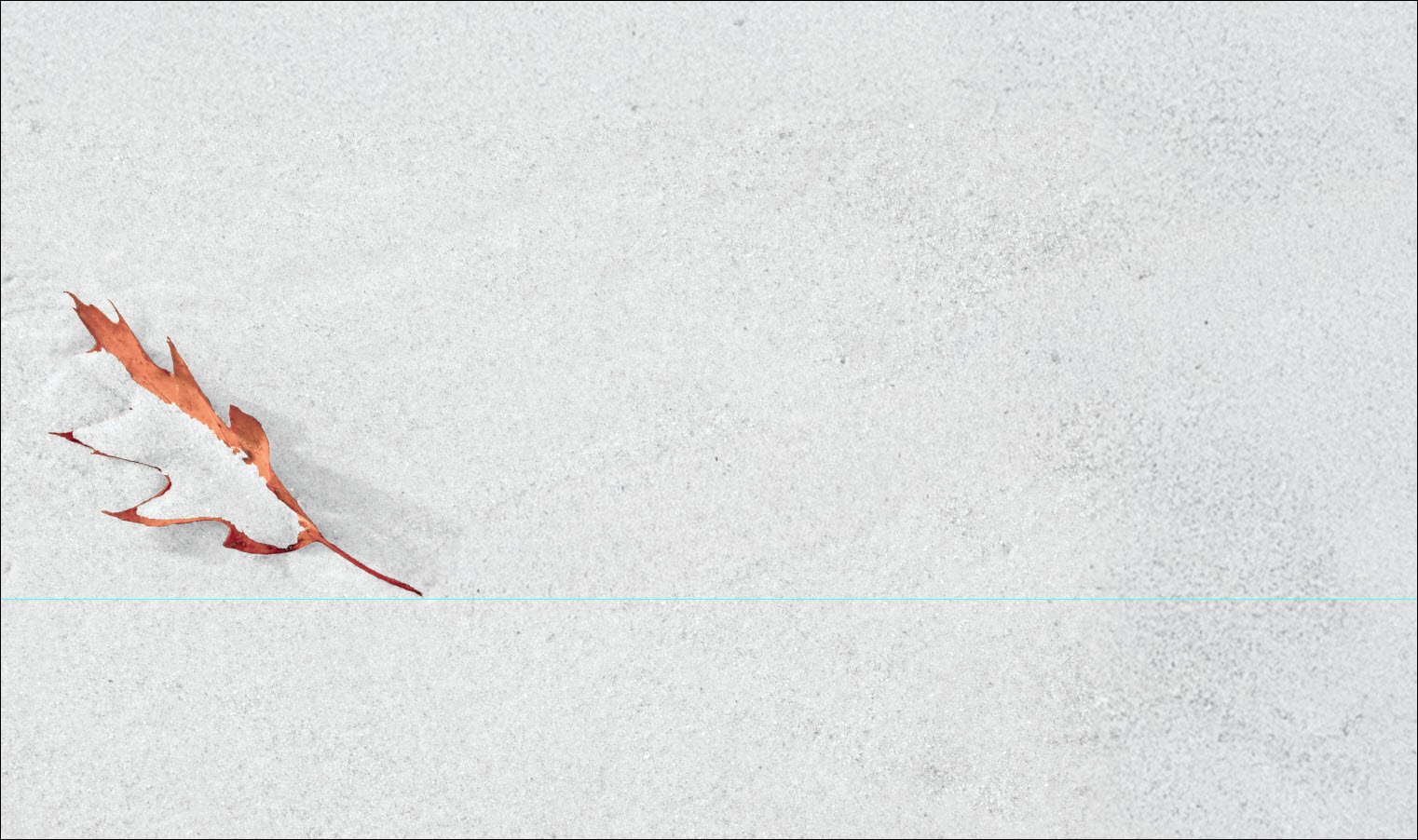
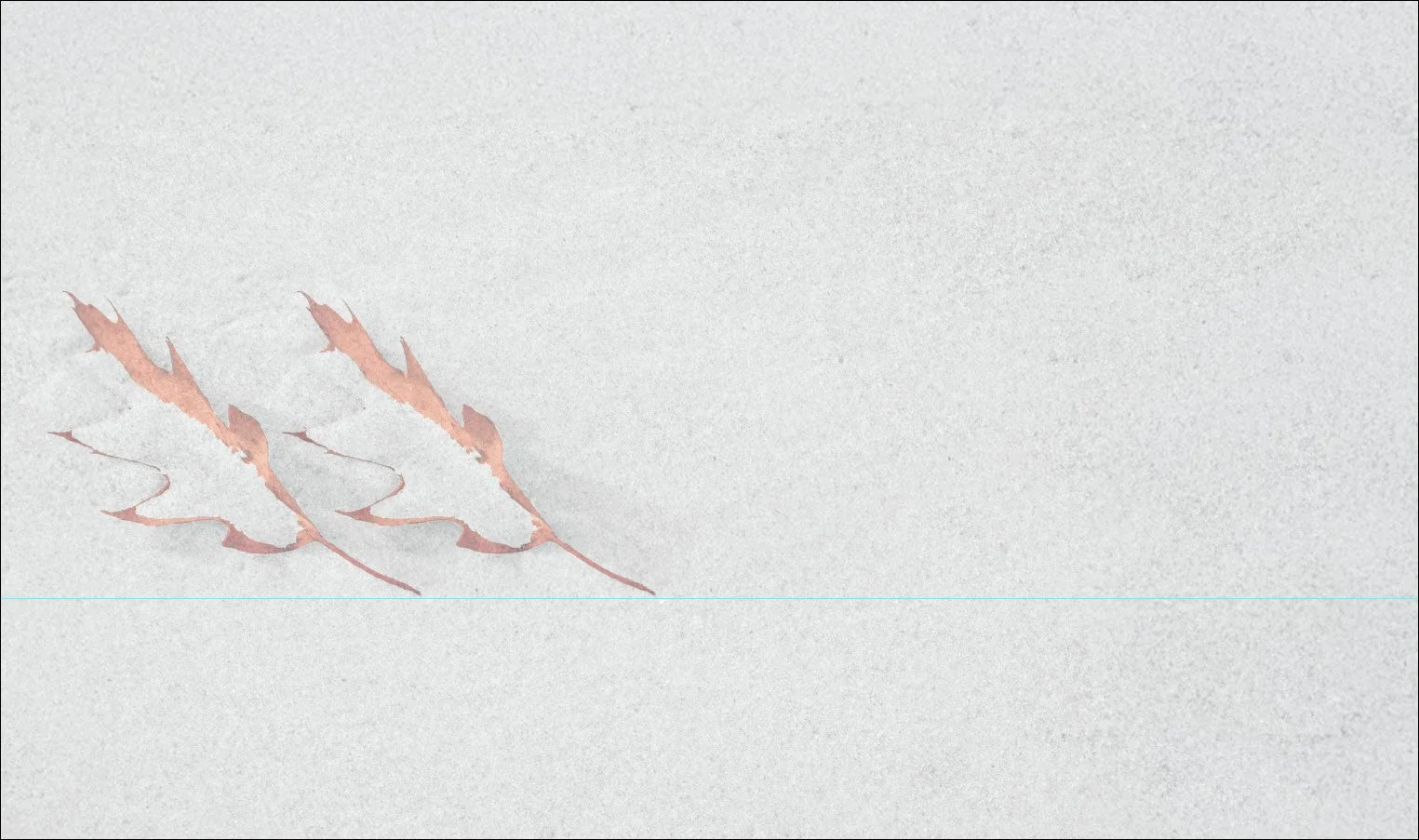
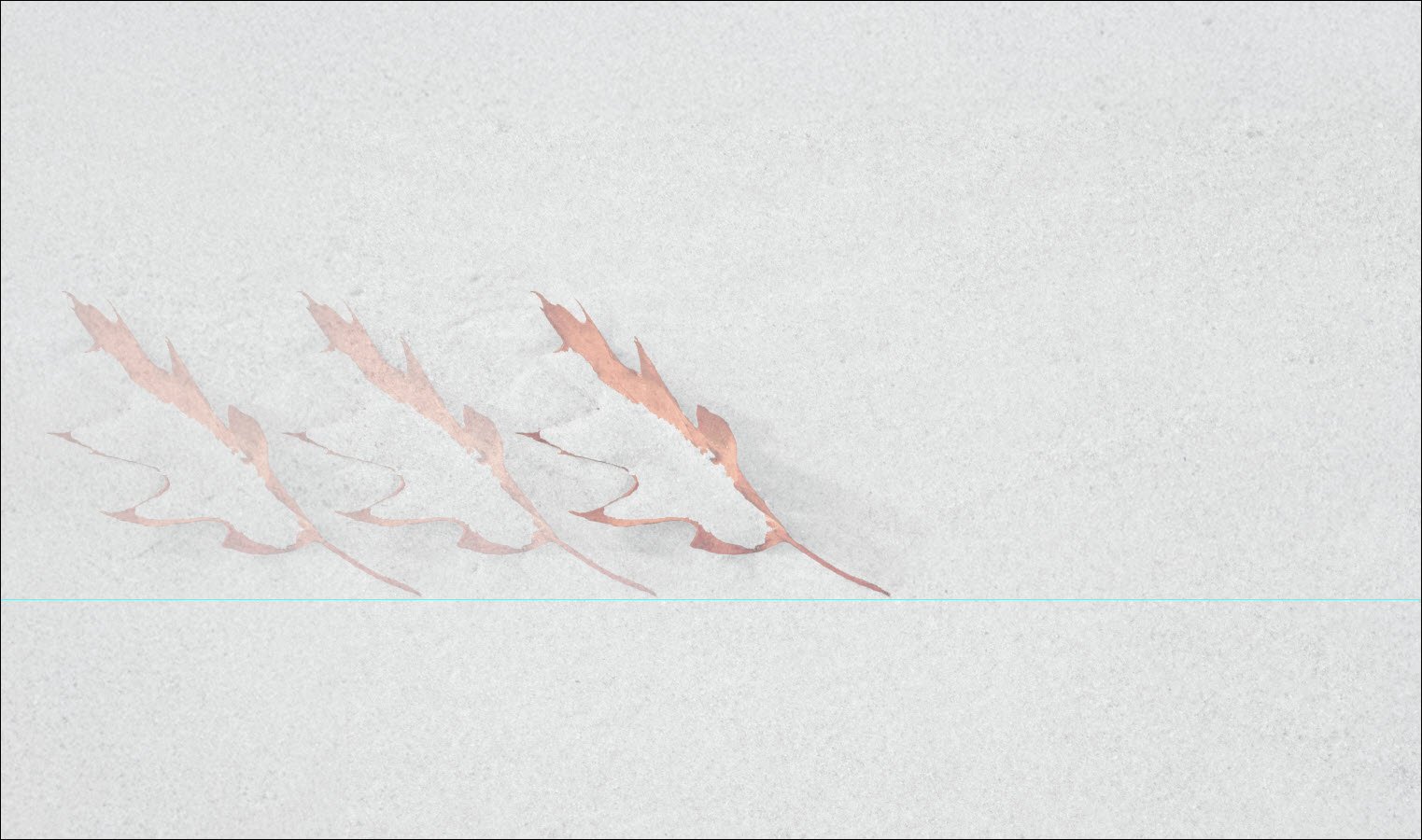
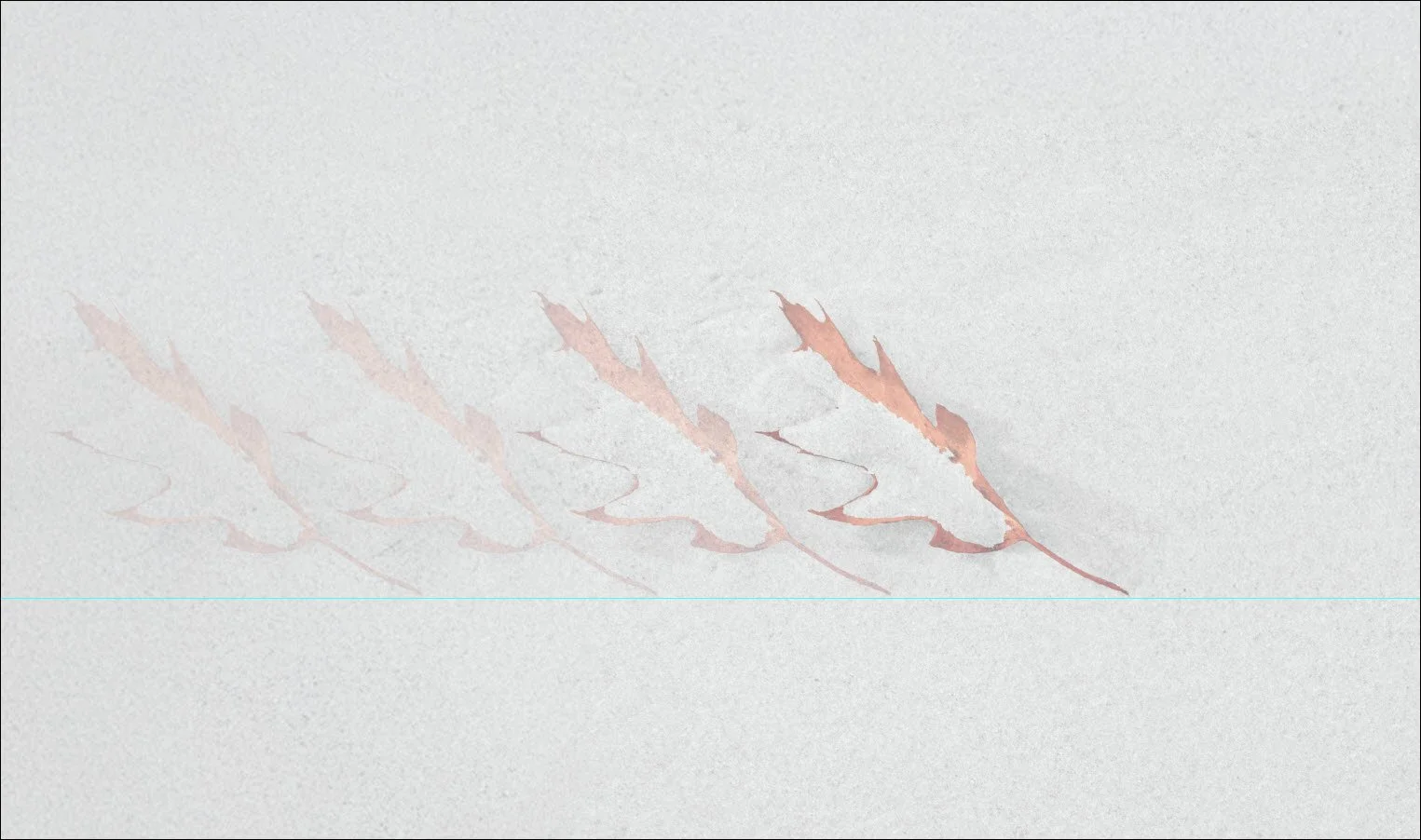
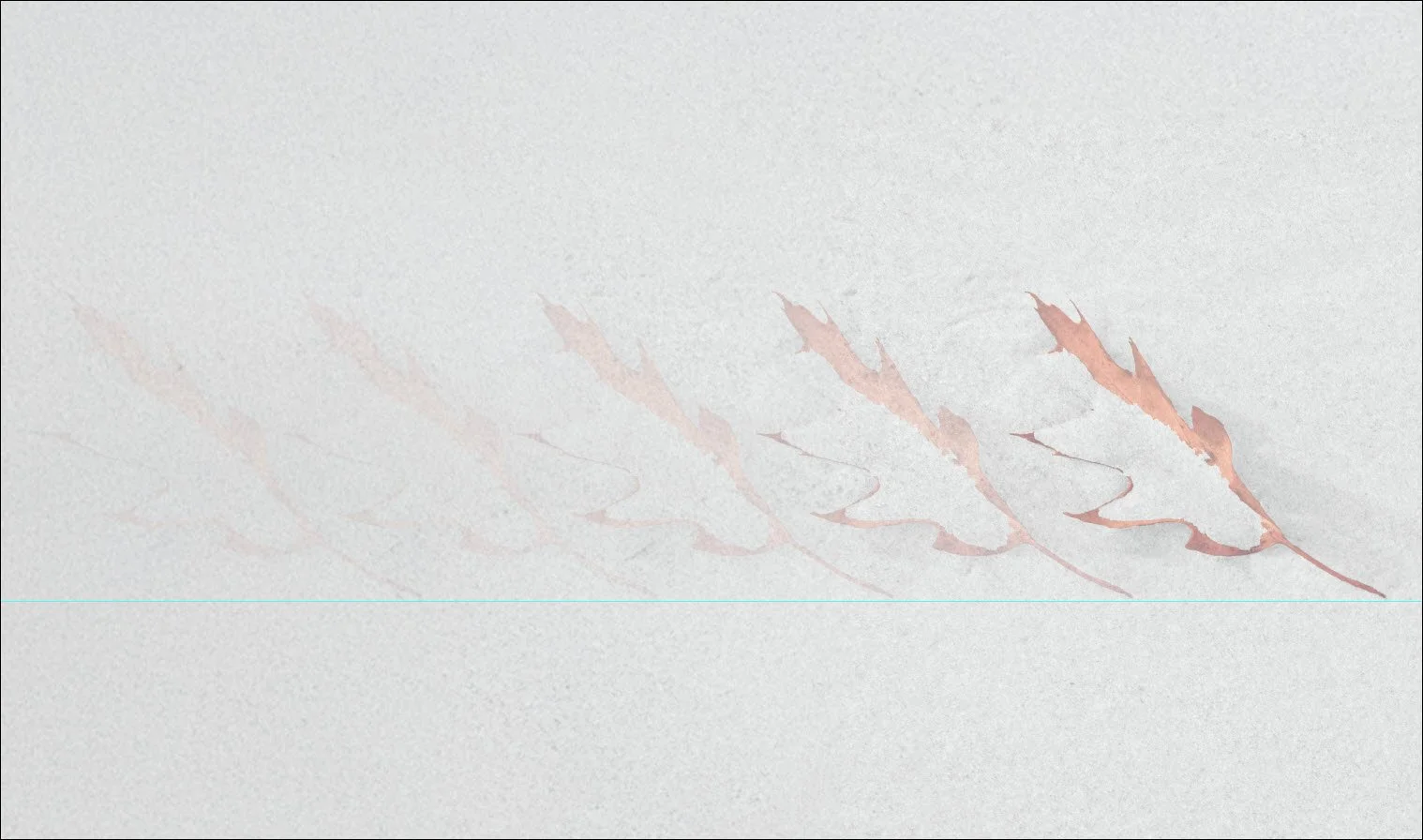
The following slides illustrate the problem. Starting with a background image, I created four copies, moving each one slightly to the right to produce a stack of five layers. Each new layer, above the background (Layer 1), was assigned an opacity of 50%.
The results clearly demonstrate how each successive layer diminishes the contribution of those below it. By the time Layer 5 is enabled, the original background image has very little influence on the final result.
Now imagine applying the same approach to a stack of 10, 20 or even 30 images. You can see how the problem could become much more pronounced!
The solution
The solution to this problem turns out to be surprisingly simple (thanks Bob Hill!).
Starting with the background layer and working upwards through the stack, use the following calculation to set each layer’s opacity:
Opacity (%) = 100 ÷ layer number
Count the background layer as layer 1, numbering each subsequent layer upwards from the bottom of the stack.
For example:
Layer 1 (background): 100% (100 ÷ 1)
Layer 2: 50% (100 ÷ 2)
Layer 3: 33.3% - and so on.
Applying this formula to our example produces the image below. Notice how each layer now makes an equal contribution to the final result.
In practice, this may not be the look we want, but that’s not the point. We’ve established a solid baseline from which to make further adjustments to suit our own artistic intentions.
You might also notice a reduction in contrast. This is largely a consequence of the simplified example. With real-world images, differences in subject matter, tonal values and overlapping details will produce more varied results.
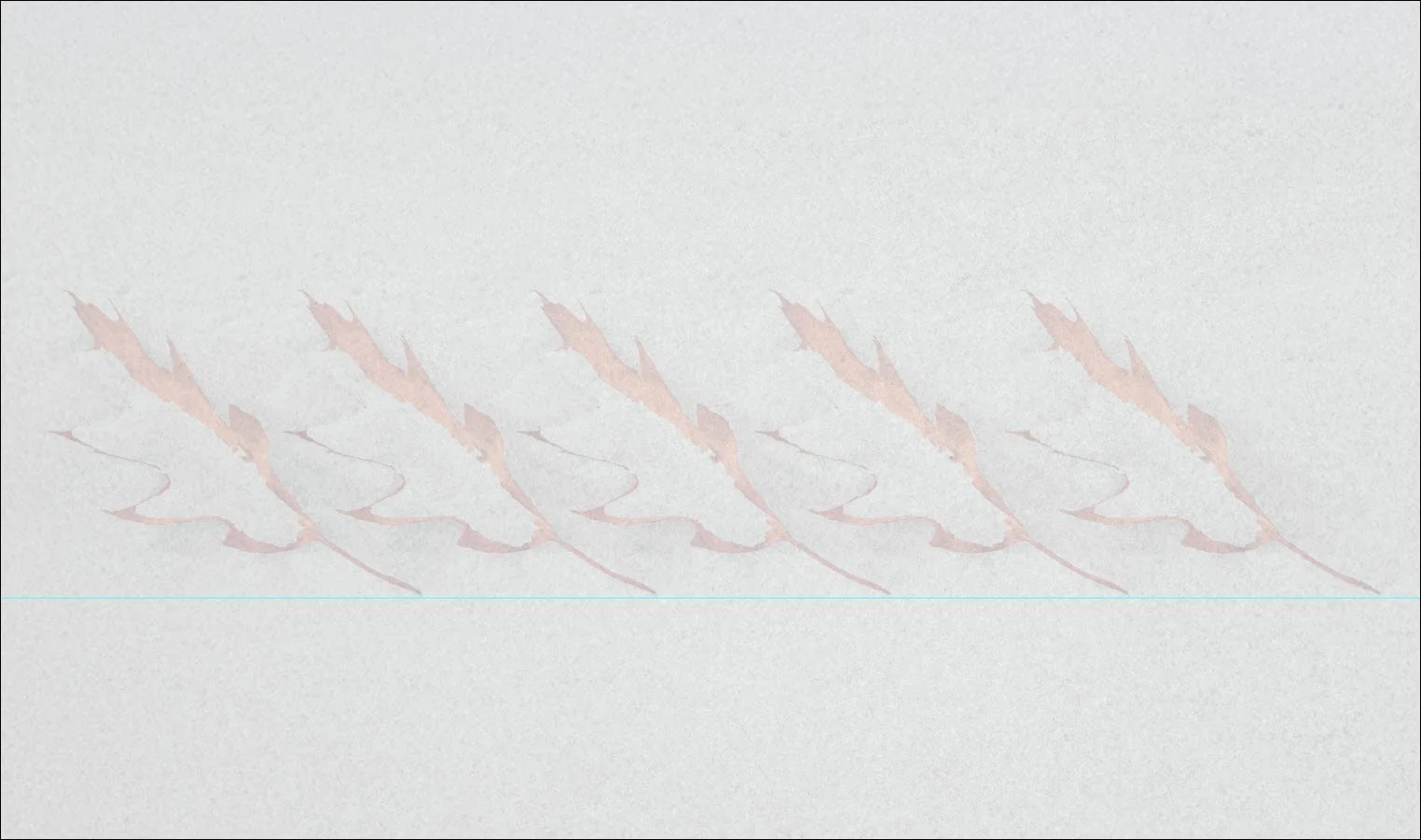
the result of using the formula-assigned layer opacity
Opacity reference table
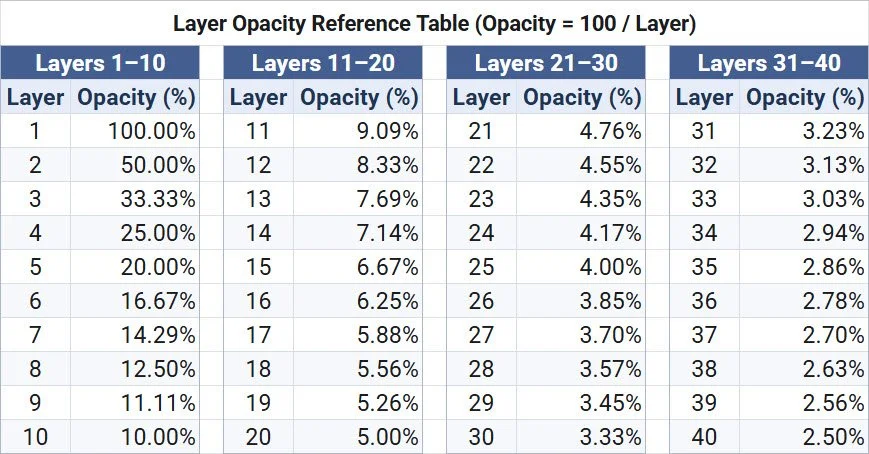
Now that we have a working formula, I’ve put together an opacity reference table to make applying it easier in future projects.
The table provides baseline opacity settings for up to 40 layers, with Layer 1 representing the background (bottom) layer in the stack. Simply find the layer number to see its corresponding opacity setting.
Final thoughts
Although this formula was developed with Pep Ventosa’s ‘In the Round’ technique in mind, it can also be applied to other Photoshop projects involving multiple layers.
These settings provide a useful starting point, from which individual layer opacities can be adjusted to suit personal preferences and artistic intent.
Do you use the ‘In the Round’ technique? Have you encountered the same challenge, or perhaps developed your own workaround? I’d love to hear about your experiences.