
Cumulative opacity calculation
Some of the most impactful, and perhaps misunderstood, decisions when using Pep Ventosa’s ‘In the Round’ technique lie in the processing.
The technique involves blending a large number of individual images as layers in Photoshop to produce the impressionistic look that characterizes the style. How these layers are blended can have a significant influence on the final result.
The problem
When initially blending multiple layers in Photoshop, we would like each to contribute equally to the final result. This offers a good starting point that allows further stylistic adjustments. However, determining the appropriate opacity settings to achieve this goal has proved challenging.
It seems logical that setting every layer to the same opacity would achieve this end, but experience, however, shows that this is not the case.
With each successive layer added to the stack, the layers above increasingly influences the final image, while the contribution of those further down diminishes. If not managed carefully, layers lower in the stack can make little or no visible contribution, potentially limiting the richness and impressionistic effect we are trying to achieve.
As a test study the simple image below was copied 4 times, with each added layer shifted to the right to ensure clarity.

Assigning an equal amount of opacity (50%) to each layer in turn produced the sequence of results below. It can be seen quite clearly that although opacity settings were set in a consistent manner the contribution of initial layers diminished as others were added. It should be noted that by the time the 5th layer is added the initial layers are having very little impact indeed.

Here the initial layer was copied as additional layers with each moved to the right for clarity and assigned 50% opacity
The Solution
A simple formula has been found (thanks Bob Hill!) that provides a useful starting point for setting layer opacity:
Opacity (%) = 100 ÷ layer number
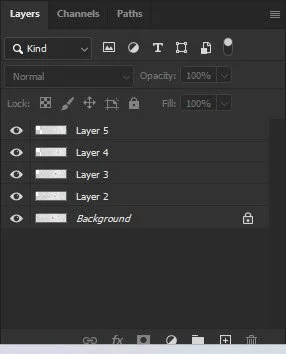
Count the background layer as layer #1, with each subsequent layer numbered upwards from the bottom of the stack.
For example:
Layer 1 (background): 100% (100 ÷1)
Layer 2: 50% (100 ÷2)
Layer 3: 33.3%
Layer 4: 25%
Layer 5: 20%
Layer 10: 10%
Layer 20: 5%
The principle is straightforward: as each new layer is added, its opacity is adjusted to compensate for the cumulative influence of the layers beneath it.
This provides a consistent mathematical starting point, rather than relying on guesswork or applying the same opacity to every layer.
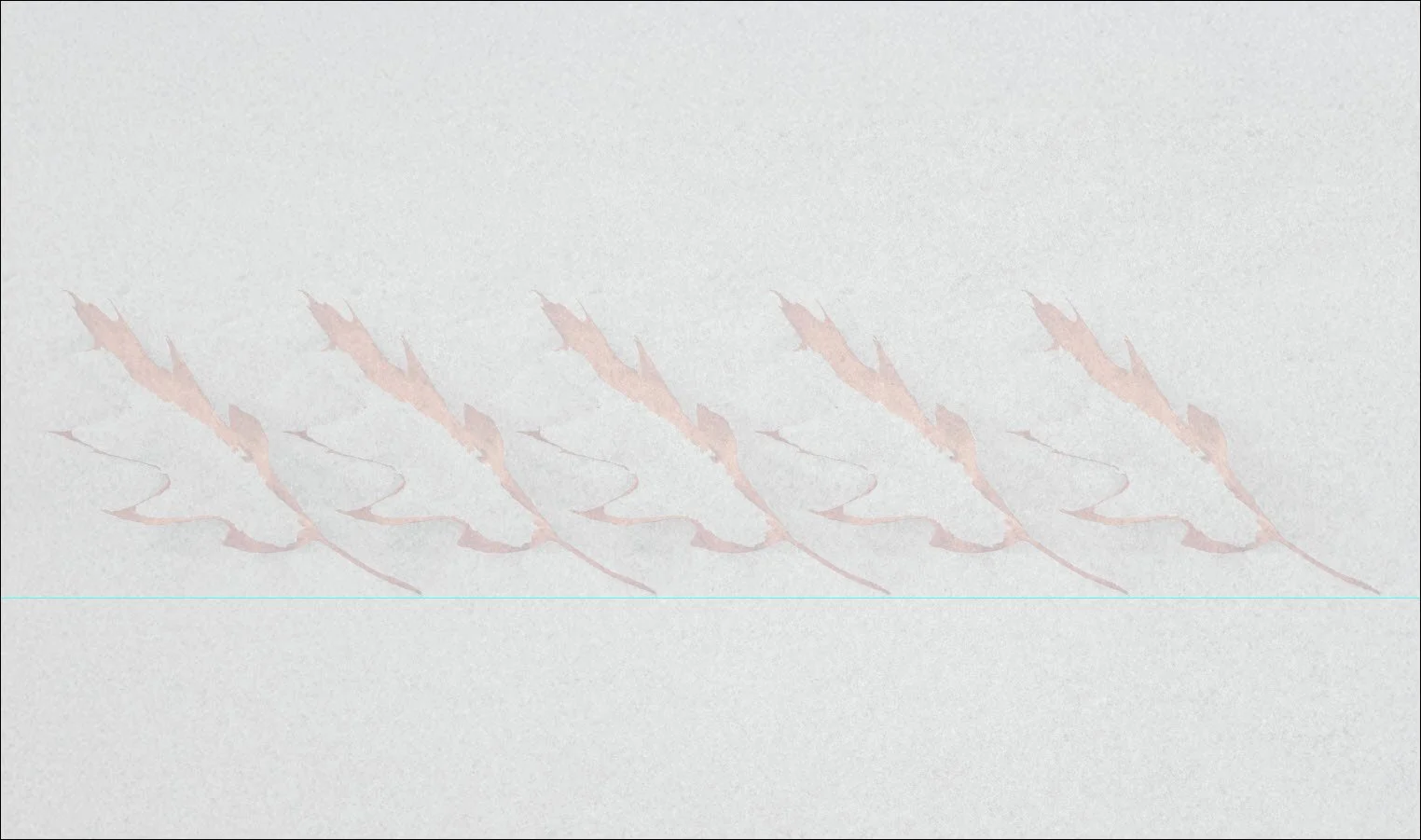
Applying this formula to our 5-layer example produces the result shown below. Note how each layer now has a very similar impact, which each having a similar contribution. The loss of contrast over the leaves is due to the overlaying of the selected background and is not representable of what might be seen on typical images.
Conclusion
These settings are not intended to dictate the final result. Artistic choices, the content of individual images and the desired degree of blending may all call for adjustments. Instead, the formula provides a useful baseline from which to experiment, helping to establish a more balanced contribution from the layers before making creative decisions.
Although this guide focuses on Pep Ventosa’s ‘In the Round’ technique, the same principle can be applied to other projects that involve blending multiple layers in Photoshop.